Connect Claude to your notes
without putting them on anyone's server
Snoq ships an MCP server. Claude, Cursor, VS Code and other AI assistants can read, search and write your notes by talking to the copy of Snoq on your own machine - not to a cloud API, because there isn't one. And it never needs your passphrase.
What an MCP server actually is
The Model Context Protocol is an open standard for letting an AI assistant use a tool. An MCP server advertises a list of things it can do - "list the notes", "search the notes", "append to this note" - and the assistant calls them when your request needs one. It is the difference between pasting a note into a chat window and asking the assistant to go and find it.
Snoq is the MCP server. There is no separate program to install, no sidecar process to keep updated, no API key to generate on a website. The feature is part of the app you already have, and it is off until you turn it on.
What that looks like in practice
You ask your assistant something like:
- "What did I write in my project notes about the pricing model?"
- "Add today's meeting outcome to the note called Roadmap."
- "Start a note called Trip planning under the Personal category."
Snoq answers from the notes on your disk. When the assistant writes, the text appears in the open editor while you watch - not on the next restart.
Why this one runs on your machine
Most integrations of this kind work by giving a cloud service access to a cloud account. Snoq has neither. The bridge listens on 127.0.0.1 - the loopback address, reachable only from your own computer - and your assistant talks to it through a local process. Nothing about your notes crosses the network, because there is no network hop to make.
Loopback only
The bridge is bound to localhost. It is not exposed to your network, your router, or the internet. Another machine on your Wi-Fi cannot reach it.
A token, per install
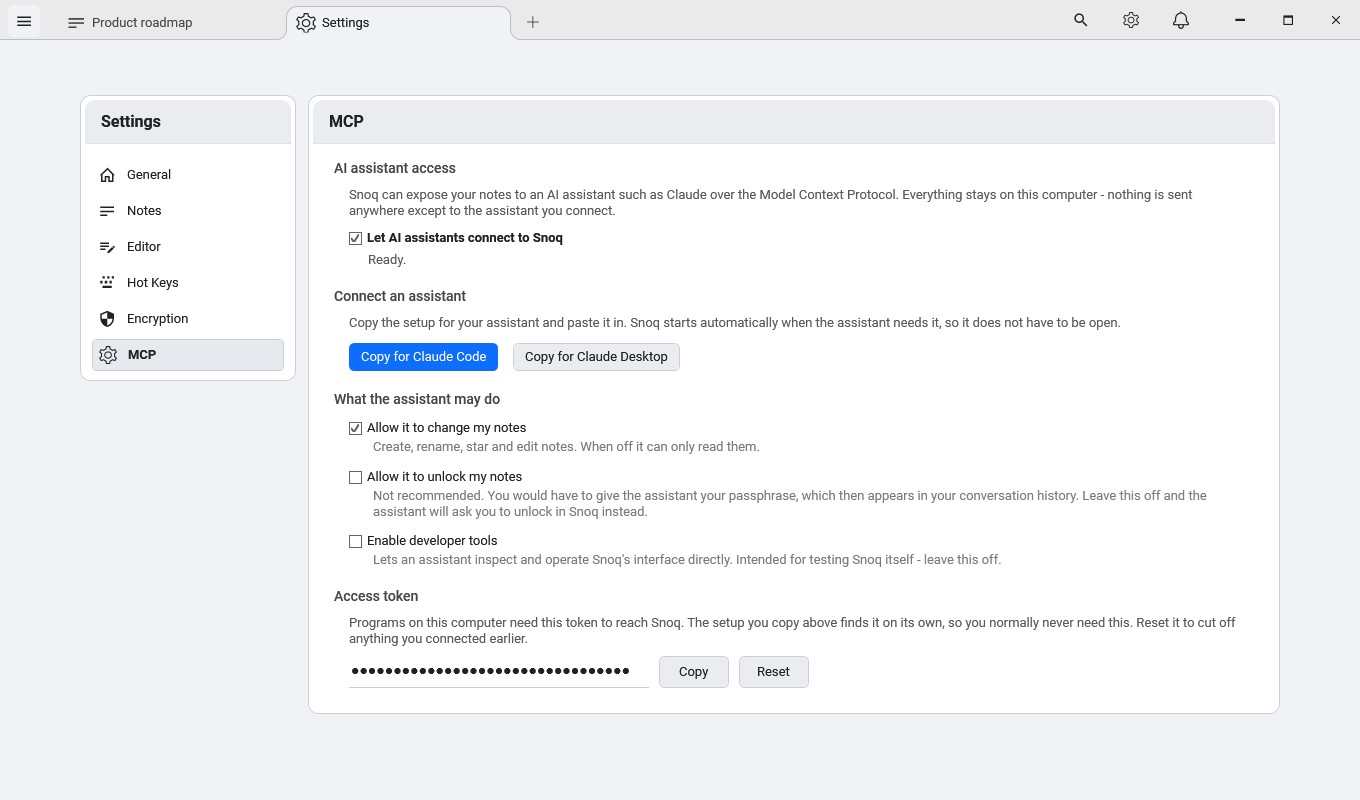
Every request must carry a bearer token generated on your machine. You can reveal it, copy it, or reset it from Settings → MCP - a reset cuts off anything you connected earlier.
No Snoq account, still
The MCP feature does not add one. There is no sign-in, no linked identity, no server-side record that you enabled it.
Your assistant is the only reader
Whatever your assistant reads travels to whichever AI provider you chose to use, under their terms. Snoq's part of the chain stays local - but the assistant's does not, and that is worth deciding deliberately.
Connect an assistant in one click
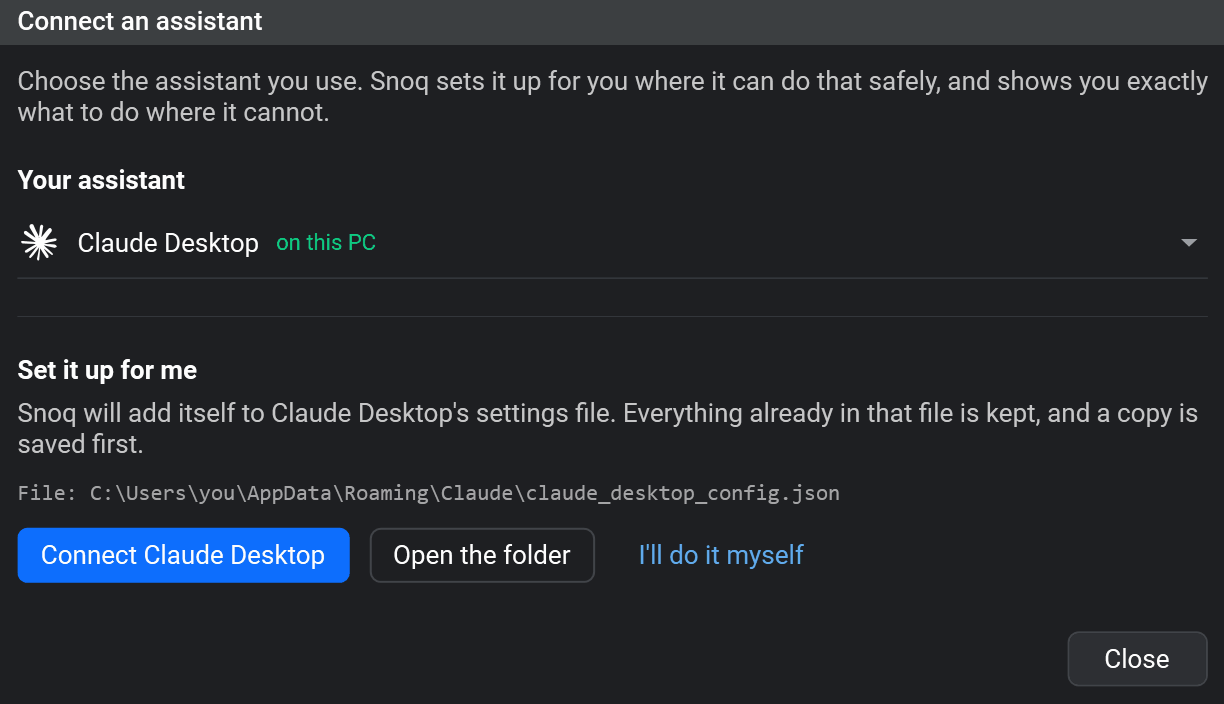
Open Snoq, go to Settings → MCP, and tick Let AI assistants connect to Snoq. Then press Connect an assistant and pick the one you use - assistants Snoq finds on your PC are listed first. Available from Snoq 2026.9.2.
- Claude Desktop, Cursor, VS Code, Windsurf, Gemini CLI - Snoq adds itself to the assistant's settings file. Everything already in that file is kept, a copy is saved first, and removing Snoq again is a button in the same dialog.
- Claude Code - a one-line command to run, because Claude Code rewrites its own settings while it runs and editing them from outside is not safe.
- Codex CLI, Antigravity and anything else - the exact steps and the block to paste, rather than a guess at a file Snoq cannot check.
If you would rather do it by hand
The dialog's I'll do it myself shows the same thing with your real path filled in. For Claude Code it is one line:
claude mcp add --scope user snoq -- "C:\Users\you\AppData\Local\Snoq\snoq-mcp.exe"
For Claude Desktop and most other clients, a block in their config file:
{
"mcpServers": {
"snoq": {
"command": "C:\\Users\\you\\AppData\\Local\\Snoq\\snoq-mcp.exe",
"args": []
}
}
}
Two things worth knowing
Snoq does not have to be open. When the assistant first needs your notes, it starts Snoq for you and waits for it. Closing the app does not break the connection.
There is no address to keep up to date. The setup Snoq writes contains no port number and no token - only the path to a small snoq-mcp.exe that always finds the Snoq you have installed. That is deliberate: it means nothing in your assistant's configuration can quietly go stale and stop working after an update or a restart.
Three switches, all off until you say so
Reading every note you own is the largest thing this feature can do, so it does not happen quietly. The master switch is off in a fresh install, and each additional capability is its own checkbox in Settings → MCP. Changes take effect immediately - no restart, and no need to reconnect your assistant.
Let AI assistants connect to Snoq
The master switch. Off by default. While it is off, every request is refused with a message telling the assistant that you turned the feature off - the assistant can explain what happened instead of guessing at a broken connection.
Allow it to change my notes
Off by default, which means a freshly connected assistant is read-only. Turn it on and it can create notes, rename them, star them, append to them and rewrite them. Leave it off and every one of those is refused while reading still works.
Allow it to unlock my notes
Off by default, and best left that way. Switching it on means handing your passphrase to the assistant, which puts it in your conversation history with whichever AI provider you use. With it off, the assistant can still ask Snoq to bring the unlock prompt to the front - you type the passphrase into Snoq, as usual, and it never travels anywhere.
There is a fourth checkbox, Enable developer tools, which lets an assistant drive Snoq's interface directly. It exists for testing Snoq itself. Leave it off.
How it behaves with an encrypted vault
If you have set a passphrase, the MCP server respects it exactly as the app does. While the vault is locked, note content is not readable through the bridge - requests to read, search or change a note are refused, and the assistant is told the notes are locked and that it should ask you to unlock them.
Locking works the other way too. Your assistant can lock the vault on request, and doing so clears the decryption keys from memory the same way the keyboard shortcut does - it is a real lock, not a screen that looks locked.
Locking covers the note list, not just the note bodies. Titles and categories happen to be stored unencrypted, but Snoq will not hand them over while the vault is locked - because you cannot read them either at that moment, with the unlock prompt covering the window. An assistant that asks what notes exist gets the answer you would give it: unlock first. The full construction is documented on the encryption page.
Common questions
"Does this send my notes to Anthropic, or to you?"
Not to us - Snoq has no server and receives nothing. Whatever your assistant actually reads does go to the AI provider running that assistant, because that is where the assistant runs. If you ask it to summarise a note, the note's text is in that request. Snoq's job is to make sure that only happens when you have switched the feature on, and only for what you asked about.
"Which assistants work with it?"
Any MCP client that runs on your PC. Connect an assistant sets up Claude Desktop, Cursor, VS Code, Windsurf and Gemini CLI for you, gives Claude Code a one-line command, and shows Codex CLI, Antigravity and anything else the exact steps. ChatGPT and Claude in the browser cannot connect: they reach MCP servers from their own servers over the internet, and Snoq's runs on your machine.
"Can the assistant delete a note?"
Not on its own. It can ask you to: Snoq comes to the front with the note open and its usual "are you sure?" prompt showing, and you answer it. The assistant cannot answer for you. Snoq has no undo, and a deleted note is the one loss you might never notice, so that decision stays yours. Changing or removing your passphrase is not exposed at all, and neither is importing or exporting an encrypted archive. See what the assistant may do for the complete list, including what is left out and why.
"What if I am editing a note when the assistant writes to it?"
Your unsaved typing is kept. Snoq treats the editor's live buffer as the starting point rather than the last saved copy, applies the change on top, and refreshes every open tab showing that note. You see the text appear in front of you.
"How do I turn it off again?"
Untick the master switch in Settings → MCP. It takes effect on the next request - no restart. To cut off a client permanently, press Reset on the access token as well.
Related
What the assistant may do
Every tool it gets, and everything deliberately withheld.
How Snoq encrypts your notes
AES-256, Argon2id, and what the passphrase actually protects.
A private notes app for Windows
Offline, encrypted, account-free, zero telemetry.
Frequently asked questions
Installation, encryption, backups and the rest.
Your notes, and an assistant that can actually reach them
Free, offline, no account. Windows 10 and 11.
Download Snoq freeWindows 10 / 11 - ~166 MB - no admin required